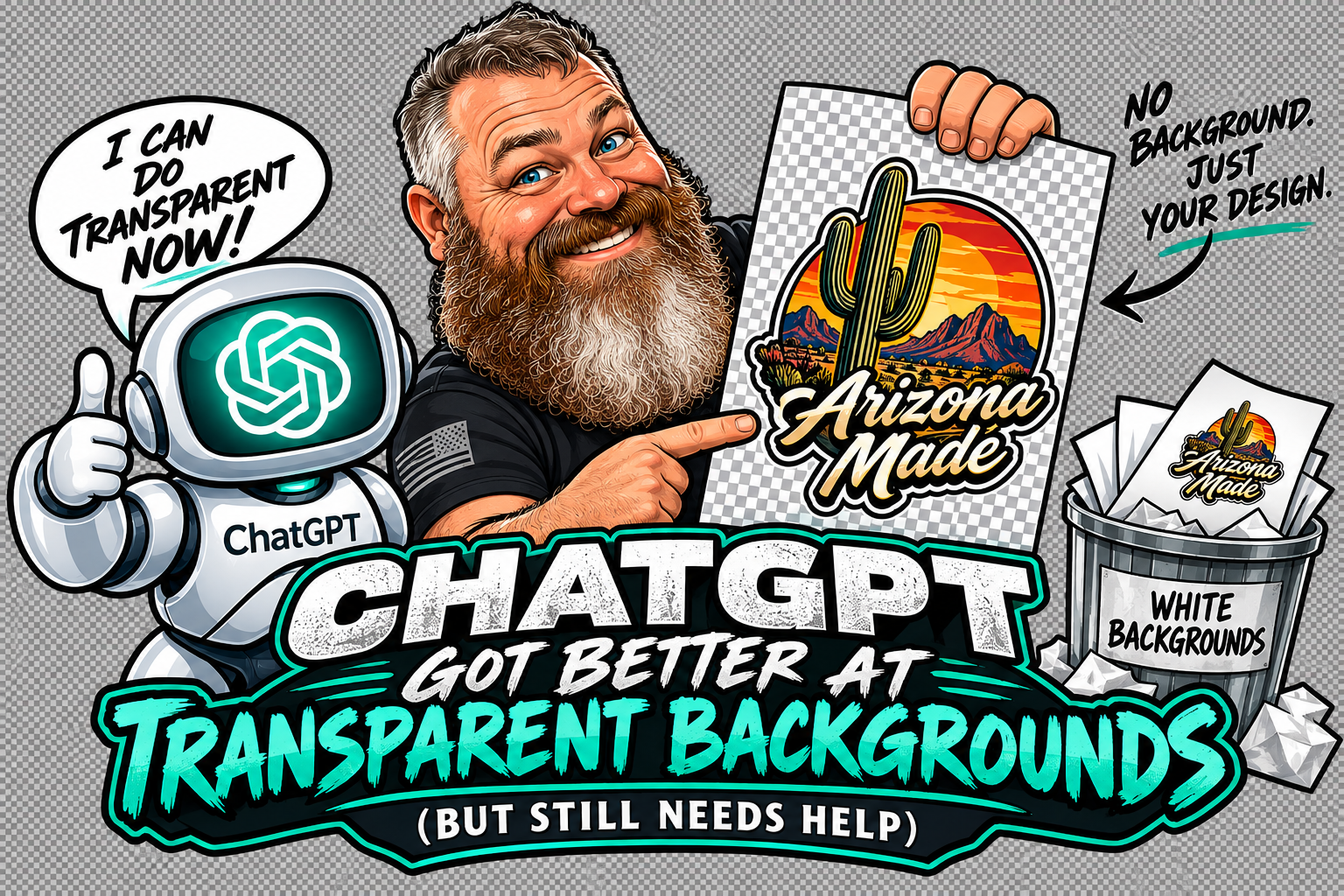
GPT-Image-2, Native Alpha Channels, and Why Print Shops Still Need the Old Workarounds
By Matt Harvey, Little 6 Industries | Published: September 2026
Back in April 2026, we published a detailed guide explaining why ChatGPT couldn’t generate transparent backgrounds and what workarounds actually worked. That article has helped a lot of customers and continues to be relevant.
But things have changed. OpenAI rolled out a new image generation model (GPT-Image-2) in April, and by August 2026, they added native transparent PNG support through a specific API parameter. Some of these capabilities are also filtering into the ChatGPT app itself.
Here’s an honest update on what’s now possible, what’s still broken, and what print shops and small business owners need to know today.
Quick Answer: ChatGPT’s newer model (GPT-Image-2) CAN produce transparent PNGs when using the right prompt or API parameter—but results are inconsistent in the ChatGPT app. For reliable production-ready transparency, the white/black comparison workaround from our April guide is still the most dependable method.
What Actually Changed
1. GPT-Image-2 Replaced DALL-E
DALL-E was retired earlier this year and replaced by GPT-Image-2 (also marketed as “ChatGPT Images 2.0”). The new model produces higher-quality output, better prompt adherence, and improved handling of text and details.
For transparent backgrounds specifically, GPT-Image-2 treats background instructions as a hard constraint rather than a suggestion. Prompts like “transparent PNG background, no background fill” are more likely to actually work than they were with DALL-E.
2. Native Alpha Channel Support (API Preview)
In August 2026, OpenAI added a `background=”transparent”` parameter to the GPT-Image-2 API. This tells the model to output a PNG with a genuine alpha channel—no faked white or black backgrounds, no post-processing needed.
The catch: this parameter is currently API-only. Developers building custom applications can use it. Casual ChatGPT users typing prompts in the app don’t have direct access to this parameter.
3. Thinking Mode for Complex Subjects
GPT-Image-2 introduced “Thinking Mode” that runs a reasoning pass before generating images. For subjects with hair, fur, or fine detail—historically the hardest to isolate cleanly—Thinking Mode produces noticeably better edges.
4. Upload and Edit Support
You can now upload an existing photo to ChatGPT and ask it to remove the background directly. This bypasses the generation step entirely and uses ChatGPT as a background removal tool. Results are decent for most subjects, comparable to dedicated tools like remove.bg.
What Still Doesn’t Work Reliably
Despite the improvements, several problems persist:
Inconsistent Results in the ChatGPT App
The same prompt can produce a transparent PNG one time and a solid white background the next time. Users report needing to regenerate several times or trying different prompt phrasings to get true transparency.
Complex Scenes Still Struggle
Simple isolated subjects (a single flower, a logo, an icon) work reasonably well. Complex compositions with multiple elements, backgrounds, or environmental details are much harder to get truly transparent.
Soft Edges Get Destroyed
When ChatGPT does produce a transparent PNG, it often uses hard cutouts—like using a magic wand tool. Glows, shadows, halos, fur, hair, and semi-transparent elements get flattened or eliminated. This is a fundamental limitation of most “AI removes background” approaches.
Free-Tier Users Are Still Stuck
The transparent background improvements primarily benefit paid ChatGPT subscribers and API users. Free-tier users generating images often still get checkerboard-fake transparency or solid backgrounds.
What This Means for Print Customers
If you’re using AI to create designs for custom prints, the practical situation is this:
Try the direct approach first. Use a specific prompt like “Generate this design with a fully transparent PNG background, no white fill, no shadow, no background elements—only the isolated subject with alpha channel transparency.” If the newer ChatGPT gives you a genuine transparent PNG, you’re done.
Check the actual file. Save the image, open it in a program that shows transparency (like Photoshop, GIMP, or even just previewing on a colored background). If you see checkerboard behind your design, you have real transparency. If you see white or another solid color, you don’t.
Use the workaround if needed. If the direct approach fails, the white/black comparison method from our April guide still works and produces the highest-quality transparency—especially for designs with soft edges, glows, or fine detail.
For truly production-ready results, the workaround is still better. Even when GPT-Image-2 produces a transparent PNG, the workaround method (rendering on white and black backgrounds, then mathematically comparing) preserves semi-transparent details that the native output flattens.
What This Means for Our Shop
At Little 6 Industries, we still see a lot of customer artwork with:
White backgrounds saved as JPG (looks transparent on screen, prints as a white rectangle)
Fake checkerboard patterns that aren’t real alpha channels
Hard-edged AI cutouts with visible white pixel halos
Complex designs where AI removed too much or too little
Files that look great on screen but print poorly
The technology has improved, but customer expectations have improved faster. People assume AI now handles transparency automatically. It often doesn’t—at least not to production standards.
When customers send us files, we still:
Verify actual transparency before printing
Check for hidden white pixels along edges
Confirm the file format supports transparency (PNG vs. JPG)
Clean up artifacts from hard AI cutouts when needed
Flag files that will print poorly before running production
This isn’t going away anytime soon. The tools are getting better, but customer artwork prep is still one of the biggest quality control challenges in DTF printing.
The AI Landscape Beyond ChatGPT
For completeness, here’s where other major AI image generators stand on transparency as of September 2026:
Recraft: The most reliable option for native transparent PNGs. Exports true alpha channels consistently.
OpenAI GPT-Image-2: Native transparency via API parameter, inconsistent results in the ChatGPT app.
Stable Diffusion: Can produce transparency through the LayerDiffuse extension, but requires technical setup.
Midjourney: Editor offers hard-edged cutouts only. No true alpha channel generation.
Google Gemini / Nano Banana: Cannot generate transparency.
Flux: Cannot generate transparency.
The workaround method (rendering on white and black, then comparing) works with any of these generators and produces the highest quality results—but requires an extra step.
Practical Recommendations for 2026
If you’re generating artwork for custom prints:
1. Use ChatGPT Plus or Pro if possible. The paid tiers have better access to the improved image generation features.
2. Be specific in your prompts. “Generate as PNG with transparent alpha channel background, isolated subject only, no shadow, no floor, no environmental elements.” Specificity helps.
3. Verify the output. Don’t assume transparency worked. Open the file and confirm.
4. Have a backup method ready. When direct generation fails, use the white/black comparison workaround. It always works and produces the cleanest results.
5. Know when to hire out. For business-critical prints where quality matters, working with a designer or a print shop that handles artwork prep saves time and produces better results than fighting with AI tools.
The Bigger Picture
AI image generation is improving fast. Six months from now, we may be updating this article again with news that GPT-Image-2 or its successor handles transparency reliably across all use cases.
But right now, in September 2026, the reality is: AI transparency is better than it was in April, but it’s still not fully reliable for production printing. Understanding the actual capabilities (and limitations) helps you make better decisions about how to prep your artwork.
The workarounds still work. The technology keeps improving. And print shops like ours will keep catching the artwork issues that AI-generated files still create—because that’s what makes the difference between a transfer that looks great and one that disappoints when it arrives.
Reference Our Original Guide
For the complete breakdown of the white/black comparison workaround method, along with detailed step-by-step instructions that still work today, see our original April 2026 article:
Why ChatGPT Can’t Generate Transparent Backgrounds (And What Actually Works) →
The workaround method described there remains the most reliable path to production-quality transparent PNGs from AI-generated images—especially for designs with soft edges, glows, or fine detail that native AI transparency destroys.
Need Help With AI-Generated Artwork?
We work with AI-generated designs every day. If your file isn’t printing quite right, or you’re not sure whether your image has real transparency, we can help.
Questions about your specific file or design? Email us at matt@little6llc.com or call (520) 705-4026. Send us your file and we’ll tell you honestly whether it’s ready for print or needs work first.
Little 6 Industries. Service-Disabled Veteran-Owned. The brand behind the brand.